DATASTORE VISUALIZER
See what your app stores.
Pass your Preferences DataStore instance to LensLogger to inspect its saved keys and values from the in-app DataStore tab. You can also edit displayed values and save them back to the same store.
STEP 01
Pass the DataStore your app uses
LensLogger expects one or more DataStore<Preferences> instances. Pass the same instance or instances your application reads and writes. The visualizer reads the current stored preference entries; it does not create a DataStore for your app.
This API is typed for DataStore<Preferences>. The guide does not cover Proto DataStore, which uses a different data type.
COMPOSE ROOT
Connect it with LensApp
When using LensLogger in a Compose app, provide the store list through the dataStores parameter. Keep your DataStore instance in the app's existing dependency or state setup, then pass it to the Compose root.
import androidx.compose.runtime.Composable
import androidx.datastore.core.DataStore
import androidx.datastore.preferences.core.Preferences
import io.github.farhazulmullick.lenslogger.ui.LensApp

@Composable
fun AppRoot(settingsStore: DataStore<Preferences>) {
    LensApp(
        showLensFAB = true,
        dataStores = listOf(settingsStore),
    ) {
        AppContent()
    }
}
To inspect more than one Preferences DataStore, pass them together:
dataStores = listOf(settingsStore, accountStore)ANDROID WITHOUT A COMPOSE ROOT
Provide it to LensAndroid
For the notification-based Android inspector, return the DataStore instances from LensInstallConfiguration.dataStoresProvider. Resolve them from the application context and provide the same app stores.
import android.app.Application
import io.github.farhazulmullick.lenslogger.ui.LensAndroid
import io.github.farhazulmullick.lenslogger.ui.LensInstallConfiguration

class MyApp : Application() {
    override fun onCreate() {
        super.onCreate()
        LensAndroid.install(
            this,
            LensInstallConfiguration(
                dataStoresProvider = { appContext ->
                    listOf(settingsDataStore(appContext))
                },
            ),
        )
    }
}
settingsDataStore(appContext) represents your app's existing DataStore provider. If you do not use DataStore, the provider can return emptyList(). See the full Android setup for manifest registration and notification details.
STEP 02
Open the DataStore tab
- Run your app and open the Lens FAB.
- Select the DataStore tab in the Lens inspector.
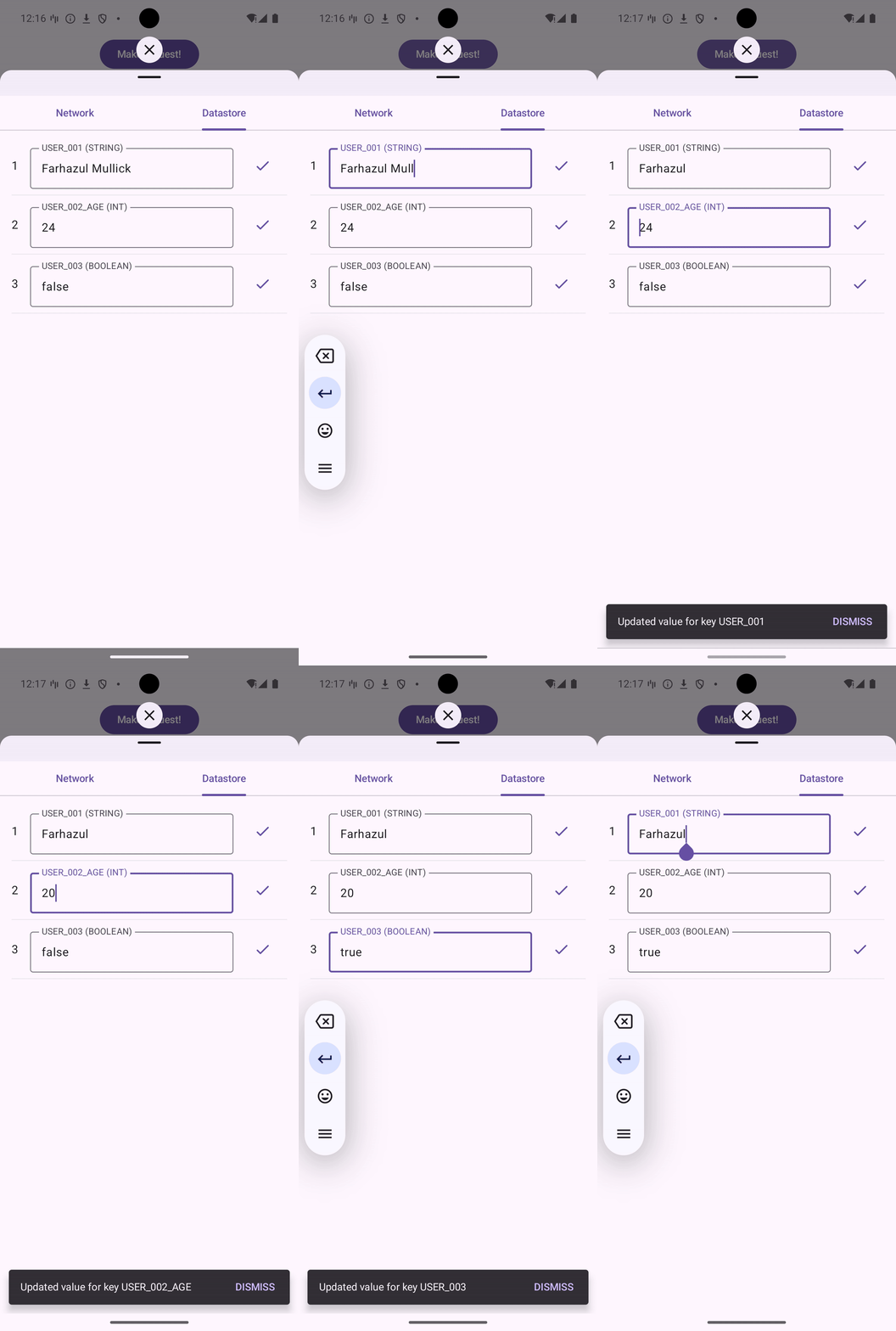
- Review the displayed preference keys, their types, and current values.
STEP 03 · OPTIONAL
Edit and save a value
- Tap a displayed value and enter the replacement.
- Tap the check icon, or move focus away from the field, to save.
- LensLogger writes the value to that DataStore and shows a confirmation message when the update succeeds.
Supported preference types are Int, Long, Float, Double, String, and Boolean. Enter a value that matches the displayed type. The edit applies to the actual DataStore used by the app, so the app may observe and react to the change.
Editing in the visualizer changes the app's stored value. Use a development or test account when changing values that could affect app behavior.
TROUBLESHOOTING
If the tab is empty
- No DataStore files found: confirm a non-empty list of Preferences DataStores is passed to LensLogger.
- No data found: the provided DataStore may not have any saved preference entries yet.
- Values do not update: pass the same DataStore instance the app uses, and make sure the edit matches the displayed type.
- Compose integration: verify
dataStoresis passed toLensApp. - Android notification integration: return the stores from
dataStoresProvider.